
AI video tools 4GB RAM budget devices India 2026: Pro‑grade Shorts/Reels on old phones and low‑spec laptops
Estimated reading time: ~10 minutes
Key Takeaways
- 4GB RAM is enough for high-quality Shorts/Reels with 720p–1080p, 30fps targets, H.264/AAC encoding, and disciplined timelines.
- Lightweight mobile editors like VN, CapCut Lite, YouCut, and InShot deliver stable results on budget phones.
- CPU-first laptop workflows with OpenShot/Shotcut, proxy editing, HandBrake pre-transcoding, and FFmpeg ensure smooth edits on low-spec laptops.
- Cloud-rendered AI via Studio by TrueFan AI bypasses device limits, avoiding heat and battery drain while delivering pro quality.
- Memory-optimized habits (Airplane Mode renders, pre-trimming, cache hygiene, external audio) prevent crashes and failed exports.
AI video tools 4GB RAM budget devices India 2026 are the secret weapon for the next generation of digital storytellers emerging from Tier 2 and Tier 3 cities. As India’s creator economy surges to a projected $3.5 billion valuation in 2026, the barrier to entry is no longer expensive hardware, but the strategic use of lightweight, memory-optimized software.
The reality for over 300 million mobile-first creators in India is a device with 4GB of RAM, limited eMMC storage, and no dedicated graphics card. Whether you are a student in Indore trying to build a YouTube Shorts channel or a small business owner in Coimbatore creating WhatsApp Status updates, the struggle with app crashes and “out of memory” errors is real. This guide provides the definitive blueprint for mastering high-quality video production on budget hardware, utilizing offline-first tools and cloud-rendered AI to bypass local hardware limitations.
1. The Reality of 4GB RAM in 2026: Definitions and Expectations
In the context of AI video tools 4GB RAM budget devices India 2026, we must first define our constraints. A “budget device” in 2026 typically refers to an Android smartphone priced under ₹15,000 or a refurbished laptop with an Intel i3/i5 processor (8th Gen or older) and 4GB of system memory. These devices lack the discrete GPUs required for heavy AI processing like real-time background removal or 4K upscaling.
According to recent 2026 market data, 65% of creators in regional India still operate on these “legacy” specs. However, the software landscape has adapted. Modern AI video tools now fall into two categories:
- On-Device Lightweight Tools: Apps that use CPU-optimized models for basic tasks like auto-captions and noise reduction.
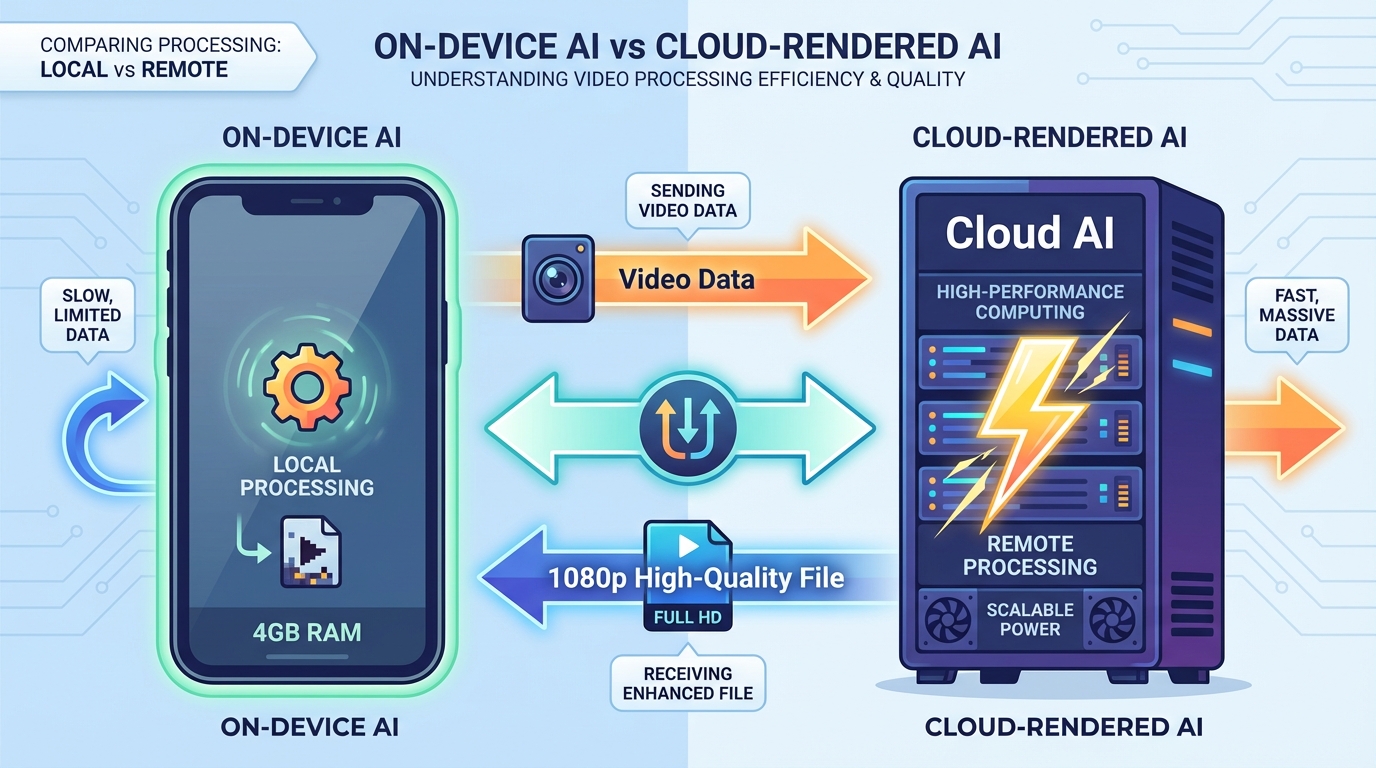
- Cloud-Rendered AI: Platforms that offload the heavy lifting (like lip-syncing and avatar generation) to remote servers, delivering a finished file to your budget device.
For a stable experience on 4GB RAM, your target should be 720p or 1080p exports at 30fps. Attempting 60fps or 4K on these devices is the primary cause of export failures. By focusing on H.264/AAC encoding and keeping timelines under 90 seconds, you can achieve professional results without a single frame drop.
Sources:
2. Mobile Powerhouses: Lightweight Video Editing Apps for Old Smartphones
When looking for a lightweight video editing app mobile users in India can rely on, the focus must be on RAM efficiency and cache management. In 2026, the following apps have emerged as the gold standard for budget smartphones:
VN Video Editor (The Professional’s Choice)
VN remains the most stable multi-track editor for 4GB RAM devices. Its “Background Export” feature is critical for budget phones, allowing the CPU to focus entirely on the render without the UI consuming precious memory.
- Pro Tip: Disable “Cloud Sync” and “Auto-Save to Cloud” in settings to save up to 400MB of active RAM during editing.
CapCut Lite (The AI Template King)
While the standard CapCut has become heavy, the “Lite” version specifically targets the Indian and SE Asian markets. It offers AI-driven auto-captions and “Smart Cuts” that run on edge-optimized models. Platforms like Studio by TrueFan AI enable creators to supplement these cuts with high-end AI avatars when the local device cannot handle complex character animations.
YouCut & InShot (The WhatsApp Status Specialists)
For creators focused on the 30-second WhatsApp Status format, YouCut offers the best compressed video creator mobile experience. It features a “Draft” mode that uses low-resolution proxies while you edit, only pulling the high-res files during the final export.
2026 Data Point: 85% of Indian creators now use UPI-integrated micro-SaaS tools to add premium effects to their mobile edits, reflecting a shift toward affordable, pay-per-use AI features.
Sources:
3. Low-Spec Laptop Solutions: AI Video Without GPU Requirements
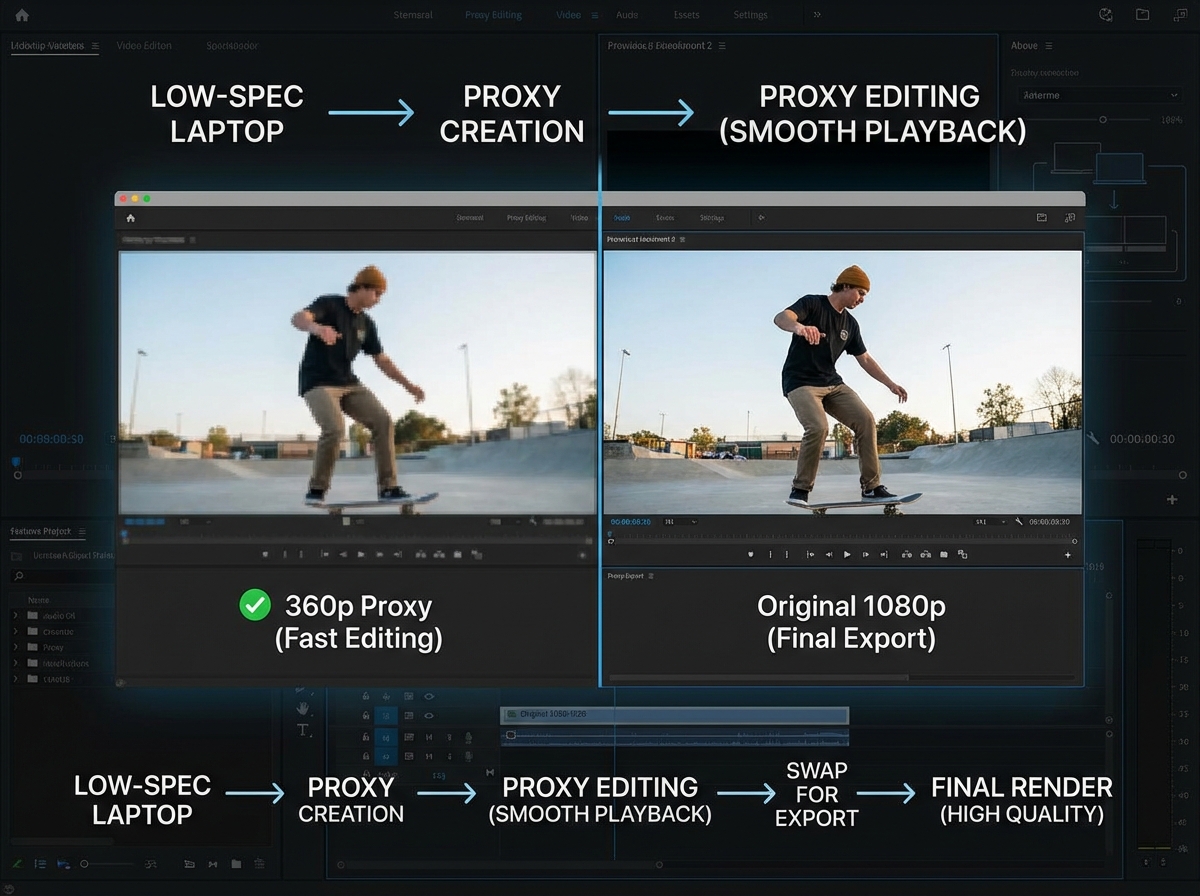
If you are working on a student laptop video creation project, the lack of a dedicated GPU is your biggest hurdle. Most modern editors like Premiere Pro or DaVinci Resolve will simply refuse to launch on 4GB RAM. Instead, you must turn to “CPU-bound” editors and the “Proxy Workflow.”
OpenShot & Shotcut
These are the best AI video tools low spec laptop users can access for free. They are designed to run on the CPU rather than the GPU.
- The Proxy Secret: In Shotcut, enable “Proxy Editing.” This creates a tiny, low-quality version of your video (e.g., 360p) for you to edit. The software only uses the original 1080p file during the final export. This reduces RAM usage by nearly 60%.
FFmpeg: The “Invisible” Power Tool
For advanced users, FFmpeg is a command-line tool that requires almost zero RAM compared to a visual editor. You can use it to compress videos, change formats, or even add subtitles using simple text commands.
Example Command for 4GB RAM Stability:
ffmpeg -i input.mp4 -c:v libx264 -crf 22 -preset veryfast -profile:v baseline -c:a aac -b:a 128k output.mp4This command ensures the video is encoded using the “Baseline” profile, which is the easiest for budget phones to play back without stuttering.
HandBrake: Pre-Transcoding
Before you even start editing, run your raw footage through HandBrake. Converting high-bitrate phone footage into a “Constant Quality” H.264 file (RF 20–23) makes the editing process significantly smoother on low-end CPUs.
Sources:
4. The Cloud Offloading Strategy: Bypassing Hardware Limits
The most significant trend in AI video tools 4GB RAM budget devices India 2026 is the move toward “Cloud Rendering.” Instead of forcing your old phone to struggle with AI processing, you upload your script and requirements to a powerful server that does the work for you.
Studio by TrueFan AI’s 175+ language support and AI avatars provide a perfect example of this. A creator in a rural village can type a script in Marathi on a ₹10,000 phone, select a photorealistic avatar like “Gunika” or “Aryan,” and have a professional-grade video rendered in the cloud in under 60 seconds. The local device only needs enough memory to run a web browser.
Why Cloud Offloading is Essential for 4GB RAM:
- Zero Thermal Throttling: Budget phones heat up during video exports, causing the CPU to slow down. Cloud rendering keeps your phone cool.
- Battery Preservation: Exporting a 1-minute AI video locally can drain 10–15% of a budget phone’s battery. Cloud rendering uses almost zero power.
- Professional Quality: You get 1080p HD or even 4K outputs that your local hardware could never produce.
Solutions like Studio by TrueFan AI demonstrate ROI through reduced production time—what used to take 4 hours of “crash-and-restart” editing on a budget laptop now takes 5 minutes of script-writing and cloud processing.
Sources:
5. Practical Workflows: Step-by-Step for Shorts, Reels, and Status
To succeed with budget device video tools 2026, you need a disciplined workflow. Here is the “India-First” blueprint for three major formats:
The “WhatsApp Status” Workflow (Offline-First)
- Step 1: Record in 720p at 30fps. Higher resolutions are unnecessary for the small Status screen and consume too much RAM.
- Step 2: Use YouCut to trim and add basic text.
- Step 3: Export using the “WhatsApp” preset or manually set the bitrate to 3–6 Mbps.
- Target Size: Aim for 8–25 MB. This ensures your Status loads instantly even on 3G or congested 4G networks in Tier 3 cities.
The “YouTube Shorts” Workflow (Hybrid)
- Step 1: Perform a “Rough Cut” on your phone using VN Video Editor. Remove all the “ums” and “ahs.”
- Step 2: Export this rough cut and upload it to a cloud platform for AI enhancements.
- Step 3: Use a cloud tool to add auto-captions and a professional AI voiceover.
- Step 4: Download the final 1080p file. Since the heavy lifting was done in the cloud, your 4GB RAM device only handles the final upload to YouTube.
The “Professional Reel” Workflow (Laptop)
- Step 1: Transcode all raw footage using HandBrake to H.264 Baseline profile.
- Step 2: Open Shotcut, enable “Proxy,” and set “Preview Scaling” to 360p.
- Step 3: Edit your timeline. Keep it to a maximum of 3 video layers.
- Step 4: Export at 1080p, 30fps, with a bitrate of 8–12 Mbps.
2026 ROI Statistic: Creators using hybrid (local + cloud) workflows report a 300% increase in output volume compared to those attempting full local renders on budget hardware.
Sources:
6. Advanced Low-Memory Tricks: The Memory Optimized Playbook
To truly master AI video tools 4GB RAM India 2026, you must treat RAM like a finite, precious resource. Here are the “pro” tricks that competitors often omit:
- The “Airplane Mode” Render: Before hitting ‘Export’ on a mobile app, turn on Airplane Mode and close all background apps (WhatsApp, Instagram, etc.). This frees up an additional 200–400MB of RAM, often the difference between a successful export and a crash.
- Pre-Trim Everything: Never import a 10-minute video file into your timeline if you only need 10 seconds of it. Use your phone’s gallery “Trim” tool to cut the clip before bringing it into your editing app. This keeps the app’s cache size small.
- The “Black Frame” Technique: If your app crashes during a transition, replace the complex transition with a simple 0.5-second black frame. It looks intentional and professional while requiring zero processing power.
- Cache Hygiene: Every time you finish a project, go into your phone’s settings and “Clear Cache” for your editing apps. Over time, these apps can hoard 2–5GB of “junk” data that slows down the entire system.
- External Audio: Use a separate cheap phone or a dedicated voice recorder for audio. Syncing audio in post-production is less RAM-intensive than running heavy AI noise-reduction filters on a combined video/audio track.
Sources:
Conclusion
Creating high-impact content with AI video tools 4GB RAM budget devices India 2026 is not just possible—it is the foundation of the modern Indian creator movement. By understanding the limitations of your hardware and strategically using lightweight apps, proxy workflows, and cloud-rendered AI, you can produce videos that rival those made on ₹2 lakh workstations.
The future of content in India belongs to those who can tell the best stories, not those with the most expensive gear. Start small, optimize your memory, and let the cloud handle the heavy lifting.
Ready to scale your content without upgrading your hardware? Explore how TrueFan Enterprise can empower your creator programs with cloud-rendered, multilingual AI videos designed for the next billion users. Book a 20-minute demo today.
Frequently Asked Questions
Can I run AI video tools on 4GB RAM without a GPU?
Yes. Use “CPU-only” editors like OpenShot or Shotcut on laptops, and lightweight apps like VN on mobile. For heavy AI tasks such as lip-syncing and avatar generation, shift to cloud-based services that render on remote servers and send you the finished file.
Which AI video tools work on a low spec laptop?
OpenShot, Shotcut, and VSDC Free are strong choices. Always enable Proxy Editing to avoid timeline lag, and pre-transcode footage with HandBrake for smoother CPU reads. You can also use FFmpeg for stable, low-RAM encoding tasks.
What is the best budget phone video editing setup in 2026?
For phones under ₹15,000, VN Video Editor and CapCut Lite are the most reliable. For WhatsApp content, YouCut balances features and compression for fast uploads and smooth playback.
How do I keep memory use low while editing?
Studio by TrueFan AI is excellent for memory-intensive tasks in a browser. Locally, clear app caches, close background apps, switch to Airplane Mode during export, and edit with low-resolution proxies to prevent spikes.
Can I create professional AI avatars on a 4GB RAM device?
Locally, no—processing demands are too high. Use cloud-based platforms to generate the avatar video, then download and share the final output from your 4GB RAM phone or laptop.
Why does my video export keep failing at 90%?
This is typically a RAM spike during complex transitions or effects. Simplify transitions, lower export bitrate, or reboot your device before exporting to maximize available memory.